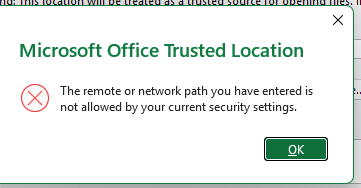
If you receive the error message "The remote or network path you have entered is not allowed by your current security settings" while trying to add a new Trusted Location in Excel, Word, or PowerPoint, it is because Office restricts adding network shares by default for security reasons.
To resolve this and allow your team to open files from a specific network drive without security prompts, follow the steps below.
Resolution Steps
Open Office Trust Center
Open the Office application (e.g., Excel).
Navigate to File > Options > Trust Center.
Click the Trust Center Settings... button.
Enable Network Locations
Select Trusted Locations from the left-hand menu.
Look for the checkbox at the bottom labeled: "Allow Trusted Locations on my network (not recommended)".
Check this box to enable the ability to add UNC paths (e.g.,
\\ServerName\Share) or mapped drives.
Add Your Specific Path
Click Add new location....
Enter the path to your network folder (e.g.,
\\65-eng-2.clt.itwce.com\Engineering\Fryer\).If you need to include subfolders within that path, ensure you check the box "Subfolders of this location are also trusted".
Click OK.
Save and Restart
Click OK on all remaining windows to save your changes.
Restart the Office application for the settings to take full effect.
Why is this happening?
By default, Microsoft Office blocks network paths from being added to the Trusted Locations list to prevent malicious files from running automatically from untrusted servers. Checking the "Allow Trusted Locations on my network" box tells Office that you acknowledge the risk and trust your internal network infrastructure.
Note: Only add paths that you know are secure and managed by the IT department.

Was this article helpful?
That’s Great!
Thank you for your feedback
Sorry! We couldn't be helpful
Thank you for your feedback
Feedback sent
We appreciate your effort and will try to fix the article